Customer tags are a powerful tool in Shopify for segmenting your audience. You can leverage these tags to control which shipping rates specific groups of customers see at checkout.
For example, you could:
Hide the COD-enabled shipping option from customers tagged as "high-risk" or "fraud-warning".
Show a special, free shipping rate only to customers tagged as "VIP" or "Wholesale".
This guide will show you exactly how to set this up.
Before you start:
This guide assumes you have already connected a shipping rate to your COD payment method. If you haven't, please follow this guide first:
How to Connect Your Shipping Rate to Cash on Delivery payment method.
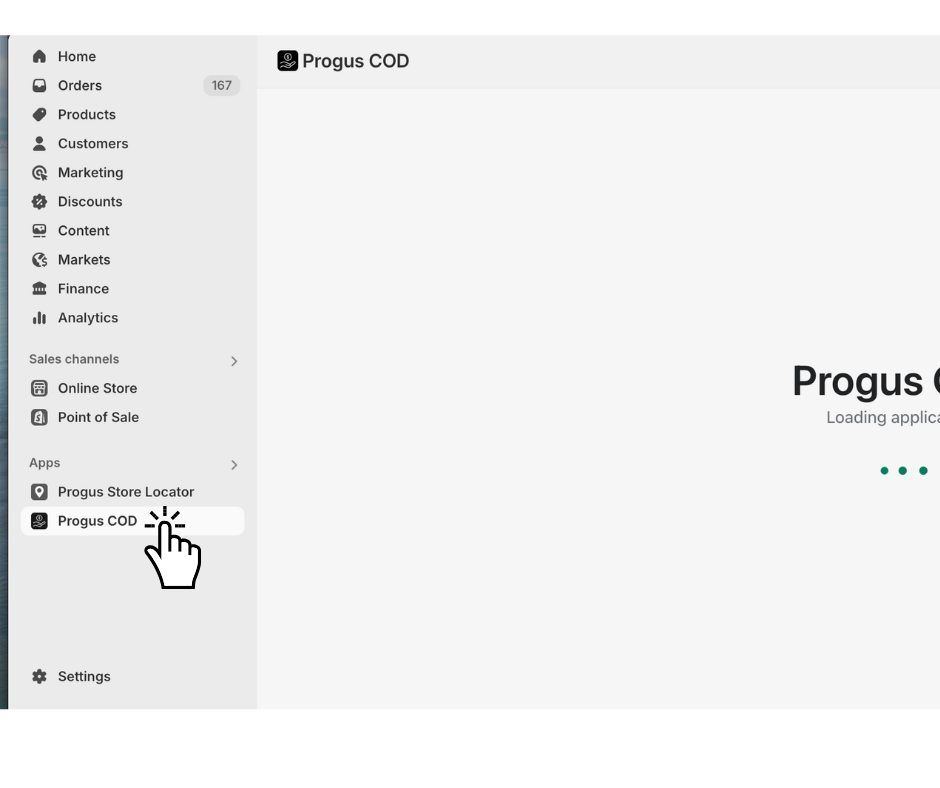
Step 1: Go to the dashboard of the Progus COD app.
Start on the main page of the Progus COD app.
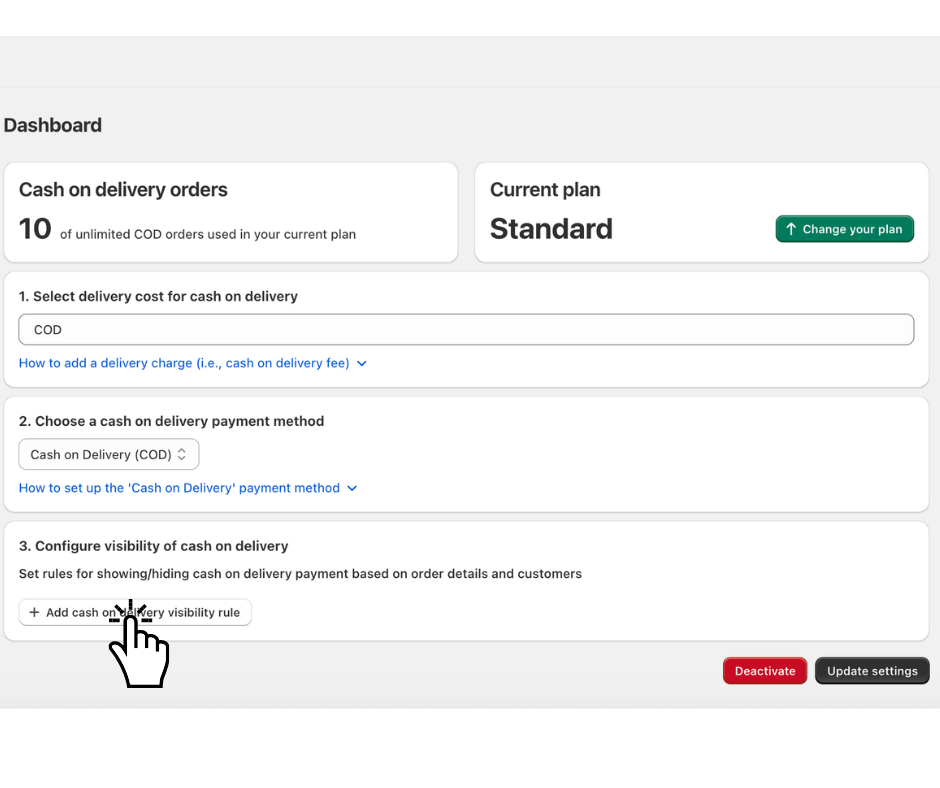
Step 2: Add a visibility rule
Find and click the "Add cash on delivery visibility rule" button.
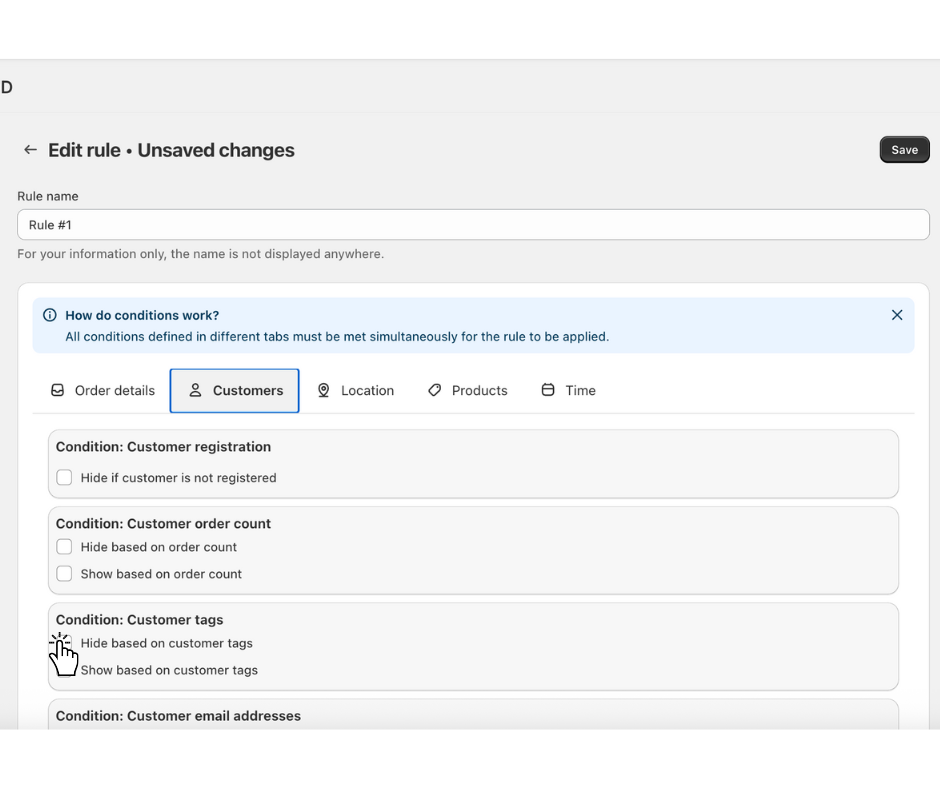
Step 3: Choose the condition
A new configuration form will appear.
Example: Hide COD shipping option for "high-risk" customers
Imagine you want to prevent customers you've tagged as "high-risk" from selecting the COD option.
Open the “Customers” tab.
Find the “Condition: Customer tags” section.
Check the box next to “Hide based on customer tags”.
Step 4: Set the value
A text box will appear. Enter the tags that should trigger the rule. You can enter one or more tags, separated by a comma or semicolon.
In the text box, type: high-risk, fraud-warning
click “add” button
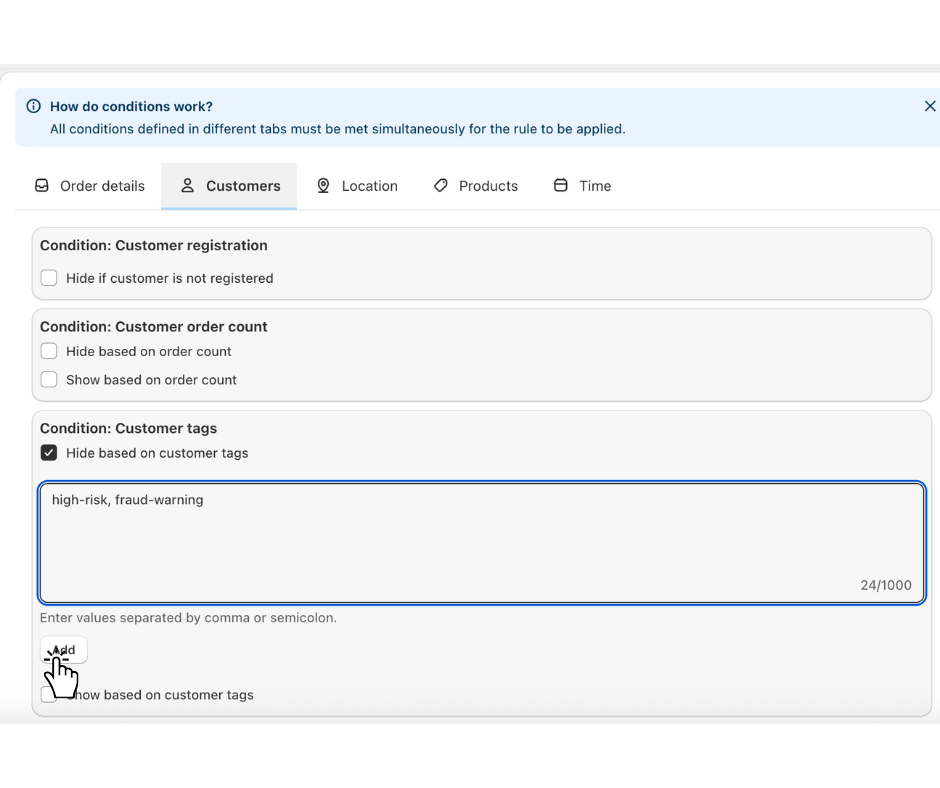
This rule means: "If a customer has EITHER the 'high-risk' tag OR the 'fraud-warning' tag, hide the COD shipping option."
> Tip: You can use the “Show based on customer tags” option to do the opposite. For example, you could create a special shipping rate and make it visible only to customers with the "VIP" tag.
Step 5: Save your rule
In the top-left corner of the form, click “Save”.
That's it! Your shipping rate will now be dynamically hidden or shown at checkout based on the tags associated with your customer's account, giving you a powerful way to segment your shipping strategy.
