Shopify doesn't allow adding a fee directly to a payment method. The solution is to create a special shipping rate where the Cash on Delivery fee is already included in the price.
This guide will walk you through setting up this dedicated shipping rate.
⚙ 1. Go to Settings
From your Shopify Admin dashboard, navigate to Settings in the bottom-left corner.
🚚 2. Open Shipping and delivery
In the Settings menu, find and click on Shipping and delivery.
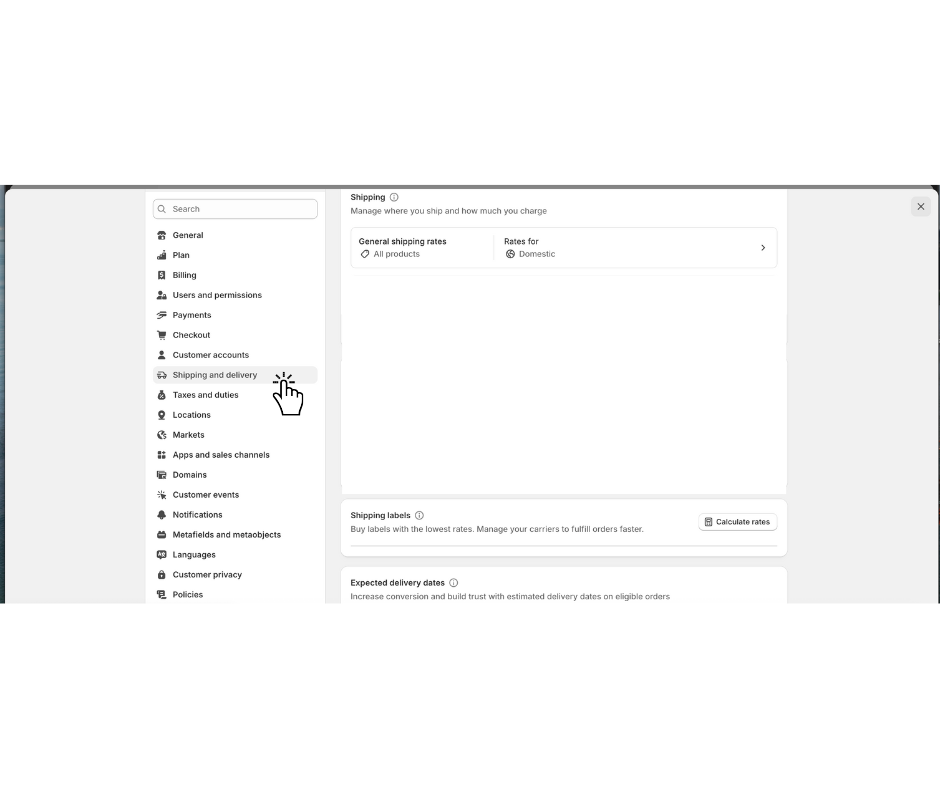
🌍 3. Manage Your Shipping Zones
Click on the "General shipping rates" section. This will show you your existing shipping profiles.
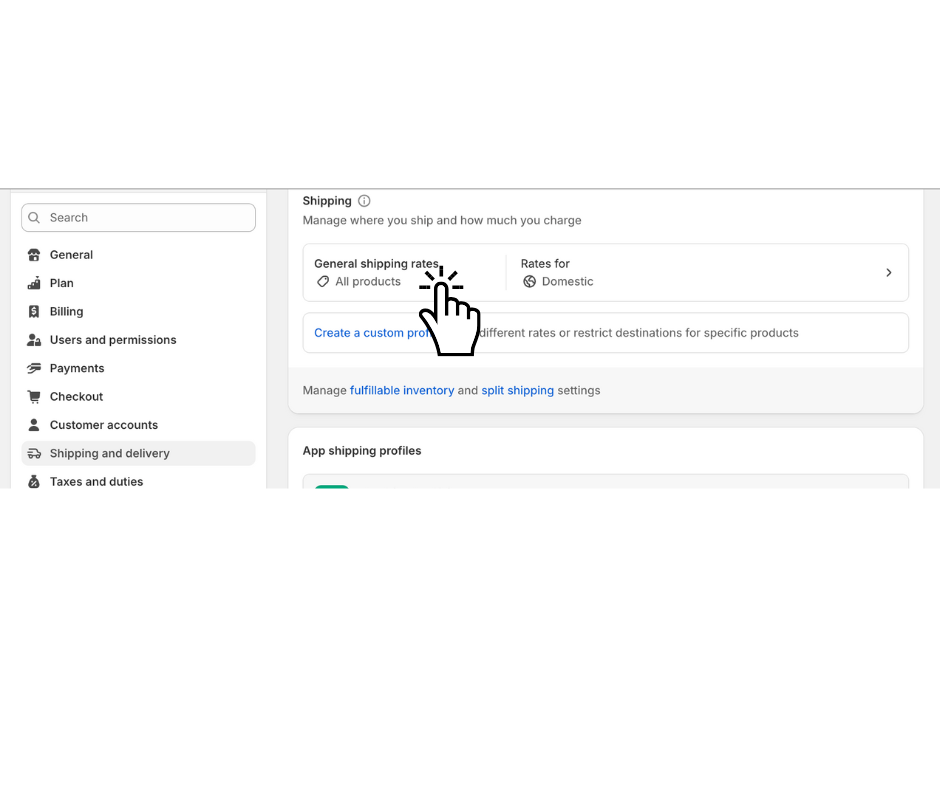
4. Add a New Rate
Find the shipping zone where you want to offer COD and click Add rate.
> Note: If you don't have a shipping zone for a specific country or region yet, you'll need to create one first by clicking "Create shipping zone".
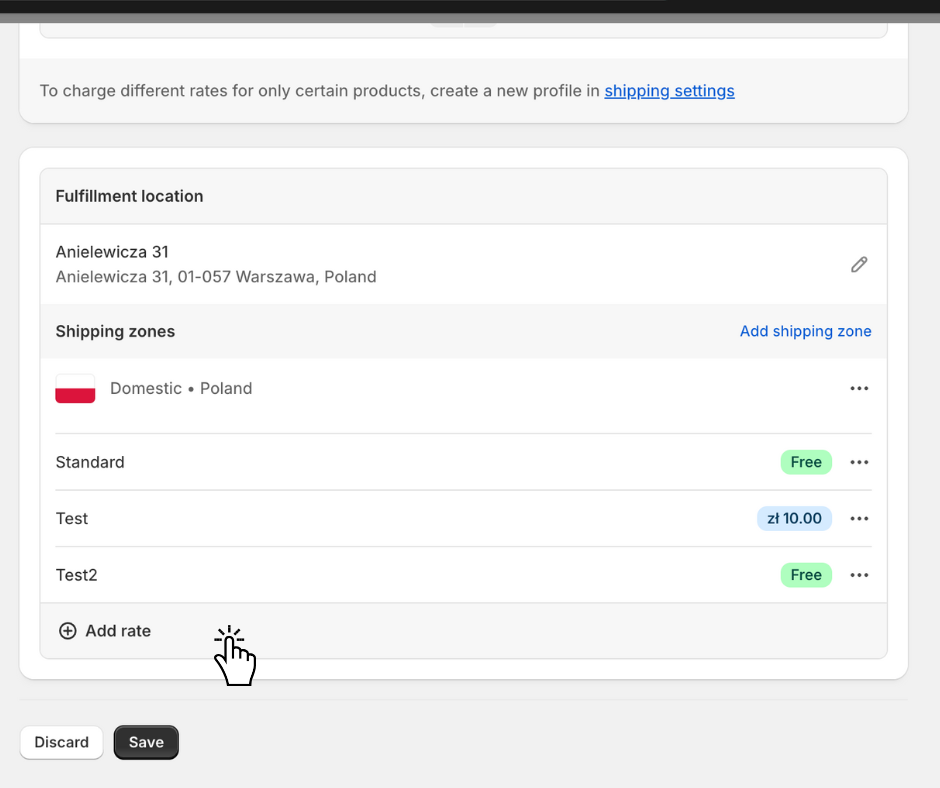
💰 5. Configure Your COD Rate
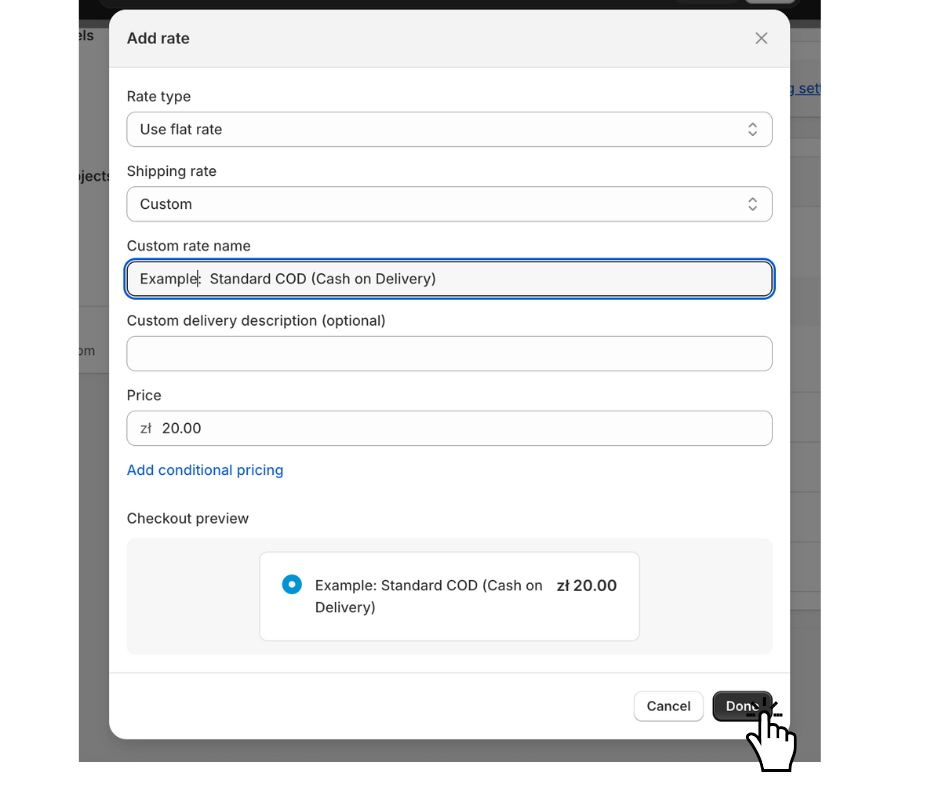
A new window will appear. This is the most important step:
Rate name: Give it a clear name that your customers will understand, for example, "Courier - Cash on Delivery" or "Express COD Shipping".
Price: Set the total shipping cost, including your standard shipping fee plus the extra COD fee. For example, if standard shipping is $5 and your COD fee is $3, you should enter $8.
✅ 6. Save Your New Rate
Once you've configured the name and price, click Done, and then click the Save button at the top of the page.
🎉 Excellent!
You have successfully created a shipping rate that includes your COD fee. Now you're ready for the final step: connecting everything in the Progus COD app.
➡ Next Step: [Link to Article 3: How to Connect Your Shipping Rate in the Progus COD App]
