Sometimes you want to offer a specific shipping rate—like one with a COD fee—only when it makes financial sense. A great way to do this is by controlling its visibility based on the total value of the customer's cart.
For example, you could:
Hide a COD-enabled shipping option for low-value orders to avoid unprofitable shipments.
Show a special or cheaper shipping option to encourage customers to spend more.
This guide will show you exactly how to set this up.
Before you start:
This guide assumes you have already connected a shipping rate to your COD payment method. If you haven't, please follow this guide first:
How to Connect Your Shipping Rate to Cash on Delivery payment method.
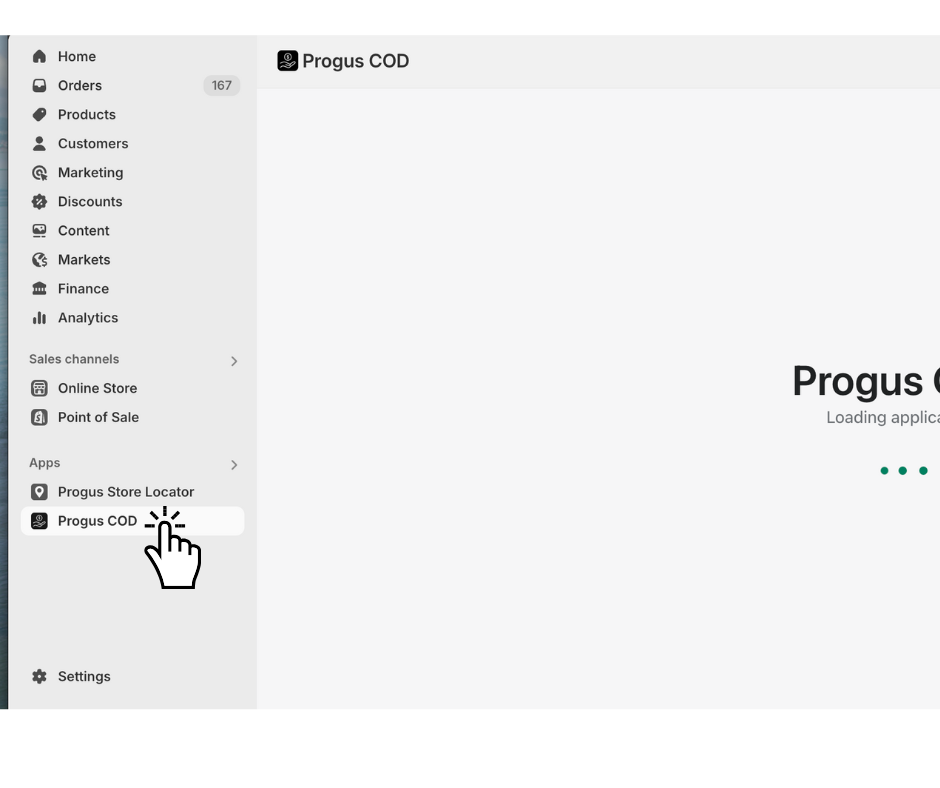
Start on the main page of the Progus COD app.
Find and click the "Add cash on delivery visibility rule" button.
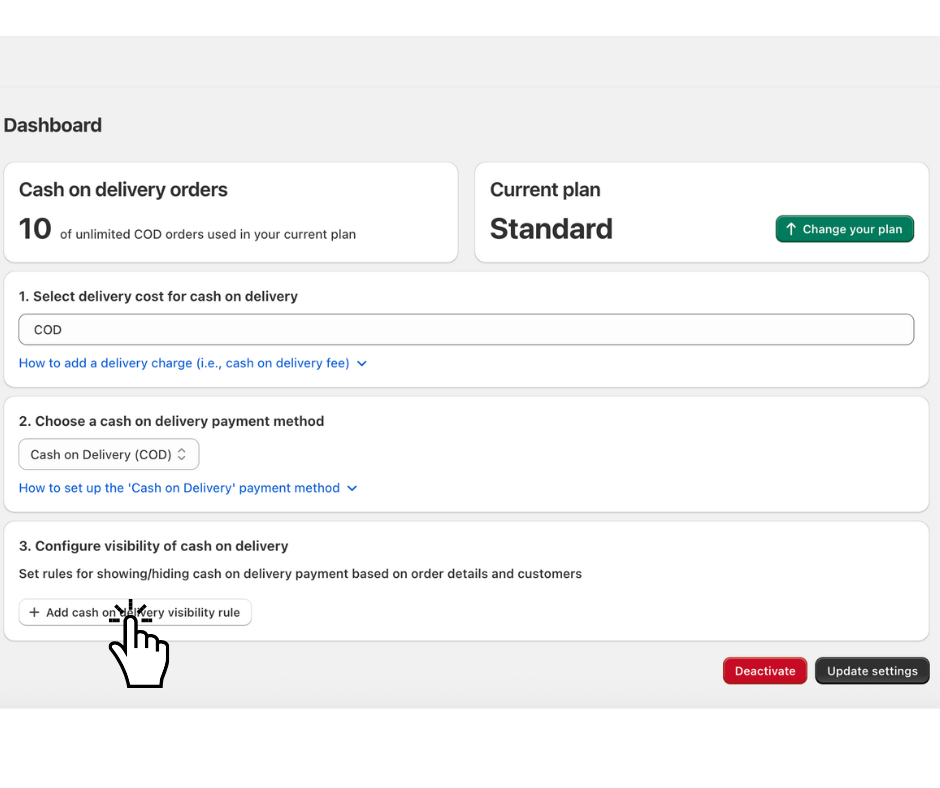
A new configuration form will appear.
Example : Hide COD shipping option for orders below $50
Imagine you want to disable COD delivery option for low-value orders.
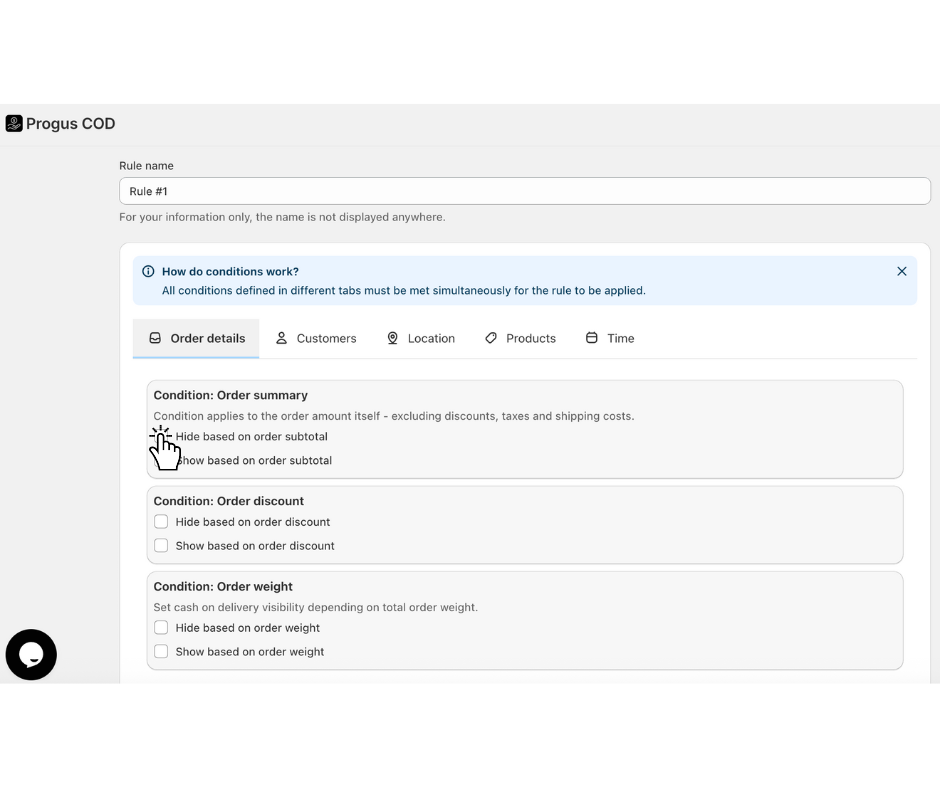
Open the “Order Details” tab.
Scroll to the “Condition: Order Summary” section.
Click and select the option “Hide based on order subtotal”.
An input field labeled Max will now appear. Enter the value below which COD shipping option should be hidden. For this example, type 50.
This rule means: "Hide the COD shipping option if the order subtotal is 50 or less."
In the top-left corner of the form, click “Save”.
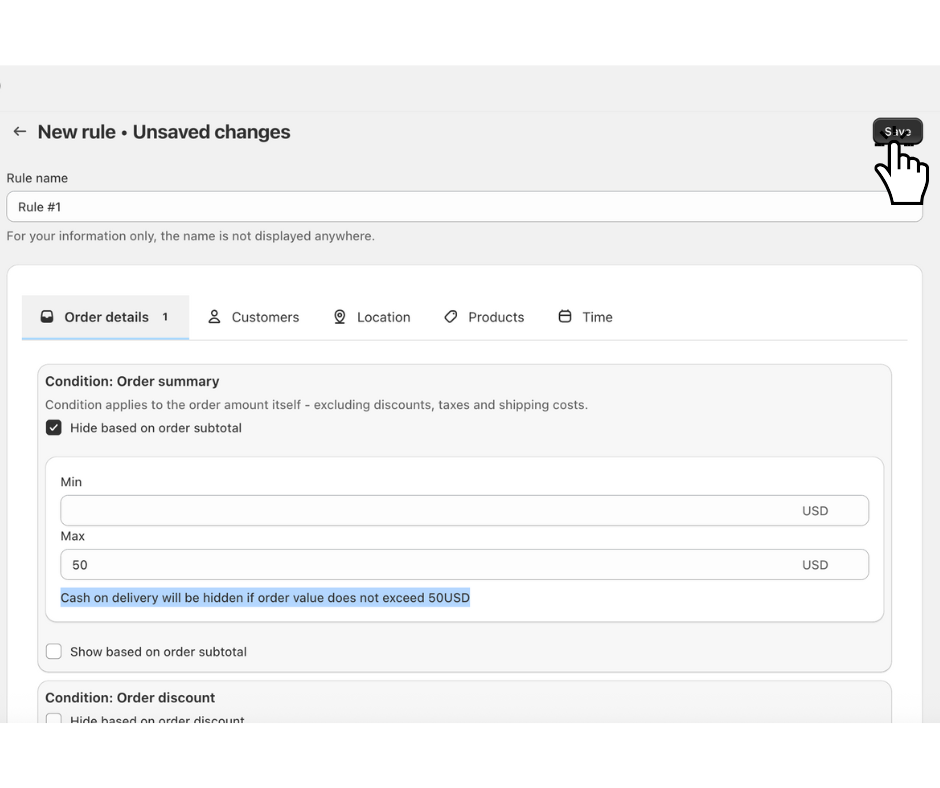
That's it! Your Cash on Delivery shipping rate will now be intelligently hidden at checkout for orders with a cart total of $50 or less, giving you more control over your payment strategy.
