The weight of an order can significantly impact shipping costs and logistics. You might want to prevent certain shipping options, especially those with COD fees, from being used for orders that are either too heavy or exceptionally light.
For example, you could:
Hide the COD-enabled shipping option for very heavy orders that require special handling.
Show a specific shipping rate only for lightweight items that fit in a standard parcel.
This guide will show you exactly how to set this up.
Before you start:
This guide assumes you have already connected a shipping rate to your COD payment method. If you haven't, please follow this guide first:
How to Connect Your Shipping Rate to Cash on Delivery payment method.
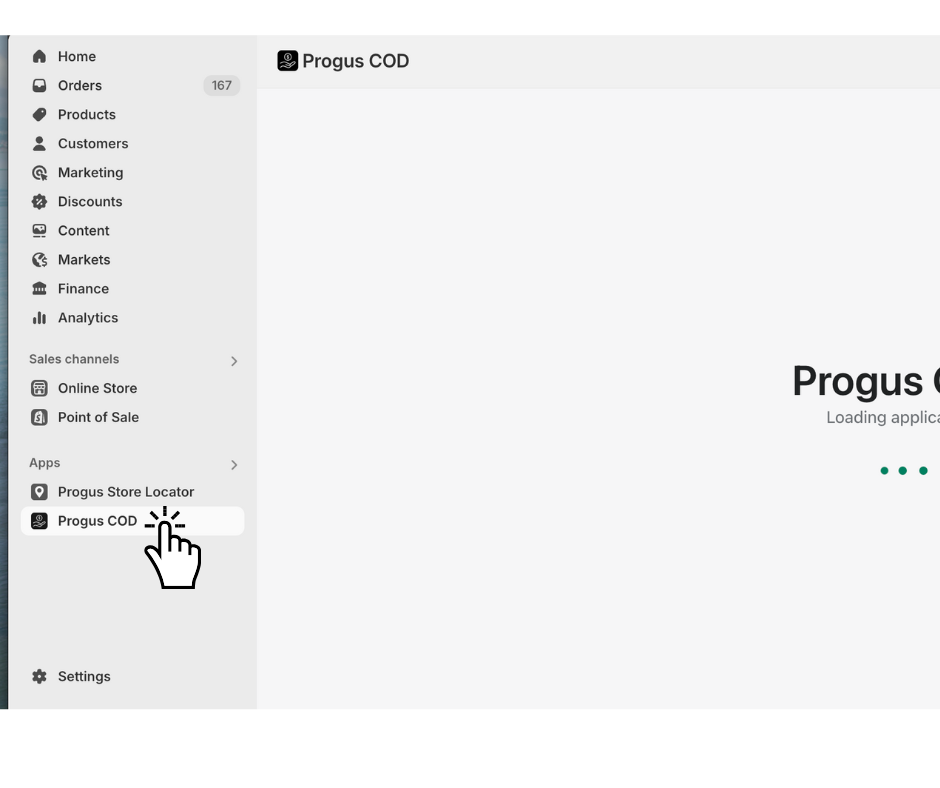
Step 1: Go to the dashboard of the Progus COD app.
Start on the main page of the Progus COD app.
Step 2: Add a visibility rule
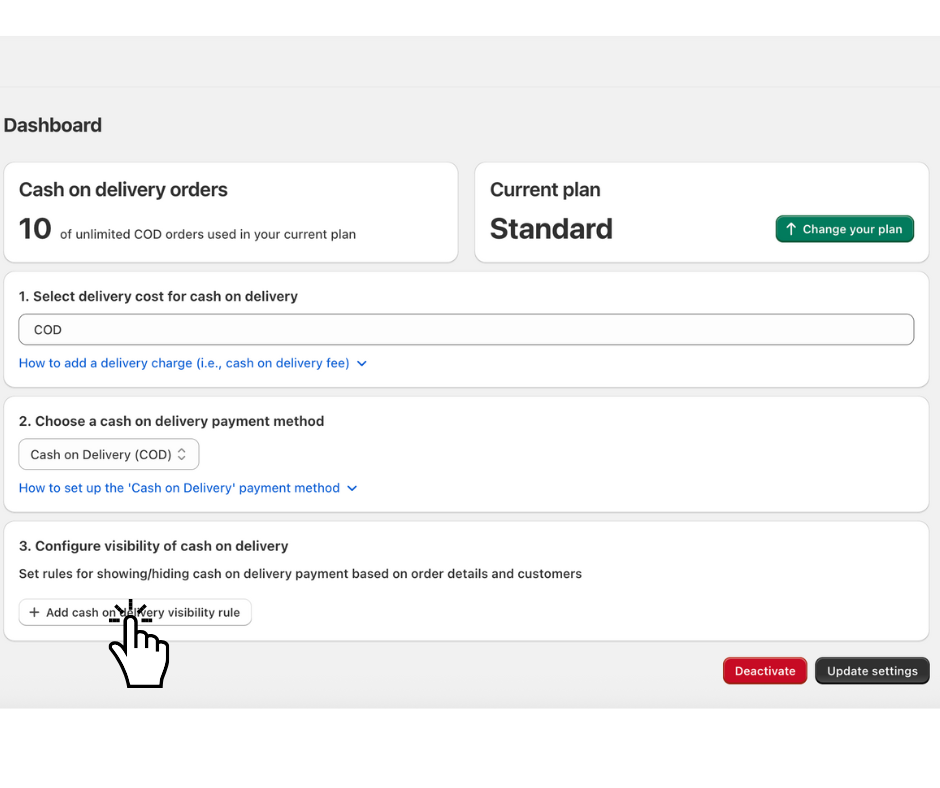
Find and click the "Add cash on delivery visibility rule" button.
Step 3: Choose the condition
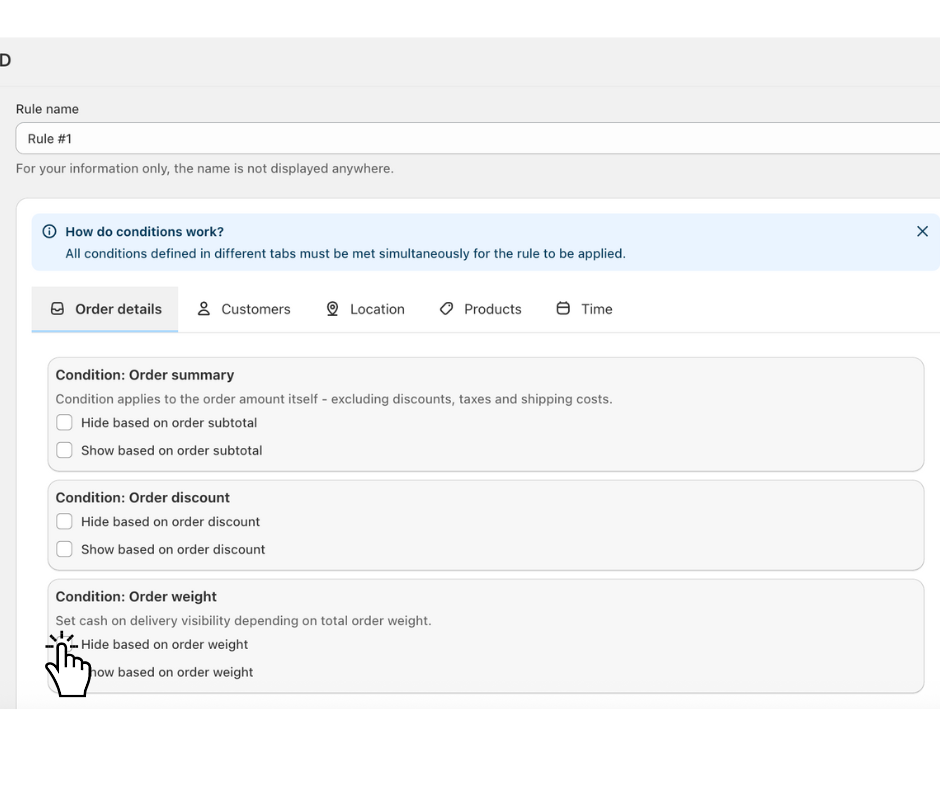
A new configuration form will appear.
Example: Hide COD shipping option for orders heavier than 10kg
Imagine you want to disable the COD delivery option for heavy shipments to avoid high courier fees.
Open the “Order Details” tab.
Scroll to the “Condition: Order Summary” section.
Click and select the option “Hide based on order weight”.
Step 4: Set the value
Input fields labeled Min and Max will now appear, allowing you to define the weight range (in your store's default unit, e.g., kg or lbs).
To hide the shipping option for orders weighing 10kg or more, set the range as follows:
In the Min field, enter 10.
Leave the Max field empty.
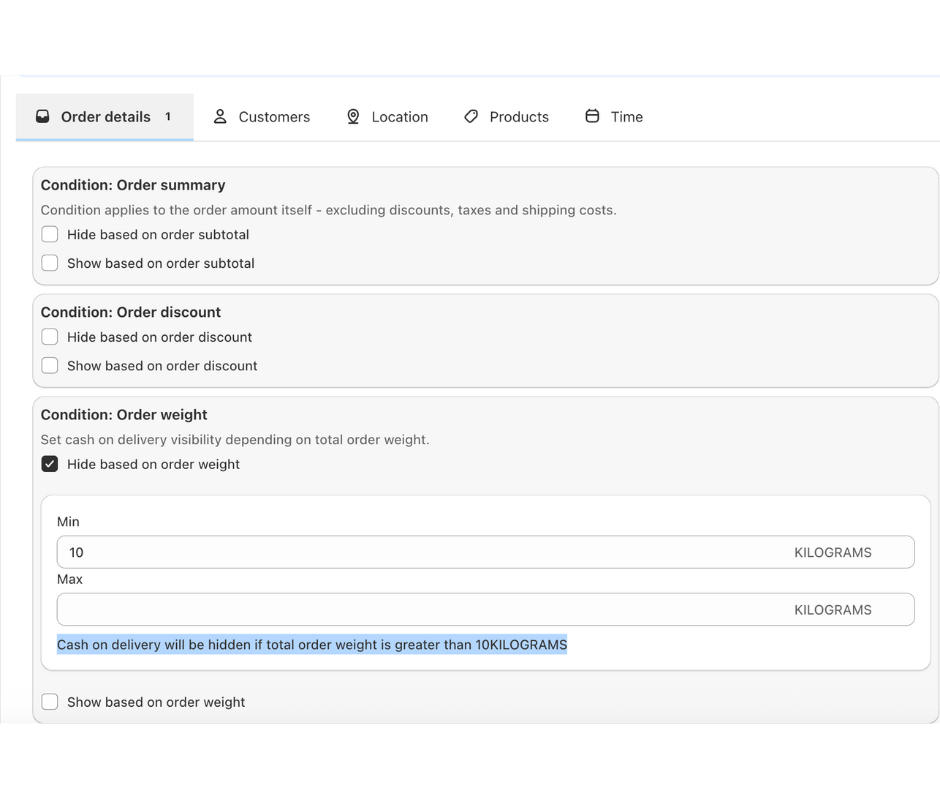
This rule means: "Hide the COD shipping option if the total order weight is 10kg or more."
> Tip: You can use both Min and Max to define a specific weight bracket.
Step 5: Save your rule
In the top-left corner of the form, click “Save”.
That's it! Your Cash on Delivery shipping rate will now be intelligently hidden at checkout whenever an order's total weight matches the rule you've created.
